Hello Xolo Q800 Qcore owners....
After 4 days of hard work me and Dj_cool ported cwm to xolo Q800
Here we are presenting 1. How to install "ClockworkMod (CWM)Recovery" in Xolo Q800. 2. How to root your Xolo Q800 in Simple way via Sp_Flash tool.

Stuff u need .??
1. Driver for your phone -Vcom Driver Download link- https://docs.google.com/file/d/0B9Cs...lWMGtPaVE/edit
2. SP_Flash_Tool_exe_v3.1248.0.96 Download link- https://docs.google.com/file/d/0B9Cs...ZReHJvR2c/edit

3.Xolo Q800-CWM-Recovery.img Download link- http://www.2shared.com/file/v1RFs-iK...-Recovery.html
and of course a Xolo Q800 ...!!!!

Process:- Please read carefull and then Do at your own risk.Rooting and installing cwm may void ur warrentey.

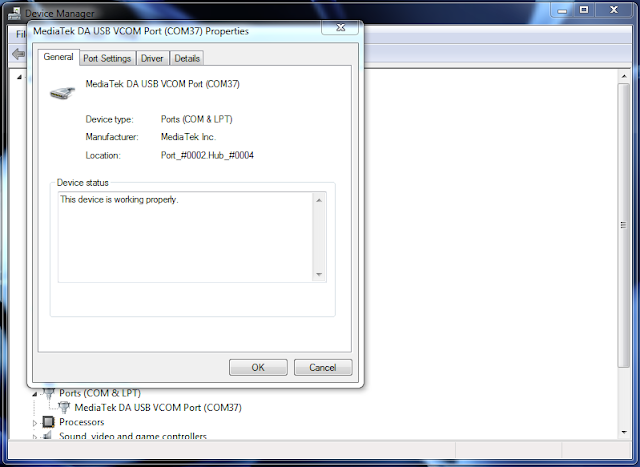
1. Install all Drives in you Computer.
2. Extract SP_Flash_Tool_exe_v3.1248.0.96.zip
3. Extract Xolo Q800-CWM-Recovery.zip on dekstop.
4. Run SP_Flash_Tool.exe (Blue Box)
5. Load "MT6589_Android_scatter_emmc" ( u can find in folder where u extract xolo Q800-CWM-recovery.zip)
6. chcek "RECOVERY" and click on it and load the recovery.img
7. Now Go to window option in spflash tool 2nd last and check write memory.
8. Now u have write memory option in this window check "EMMC" in memory setting and open raw data and load recovery.img again.
9. Change recovery Partition Begin address :_ 0x2d80000 container lenth 0x600000 now click write memory now tool will search for device.
10. Connect your phone with usb driver (make sure all driver installed) and let the process run..
11. Red line and then Navy green and "OK" now close sp flash tool and unplug your phone
12. Press volume + and power button and hold till 10 sec now your phone will go in CWM Recovery.....

!!!!!!!!!!!! Have fun !!!!!! Now U have CWM Recovery in your XOLO Q800 !!!!!!

Now u have CWM on Your Xolo Q800 ..........!!!!!

Here we show you how to root xolo Q800

1. download "super SU " from here. Link- http://www.2shared.com/file/5B83AcpM...erSU-v104.html
2. Copy zip file to sd card .
3. Open CWM iin phone and chose install zip from sdcard .
4. select zip file "super su ".
5. Reboot...

<<<<<<<<<<<Have fun............>>>>>>>>>>
Now enjoy rooted xolo q800......

CONTROL ANDROID PHONE THROUGH SMS

This is how you can control a phone

Firstly, you have to download the free app from this website:
http://play.google.com/store/apps/developer?id=BOMBIL

The workflow of this app is quite simple. Using this app, if you send a message from any other mobile phone to your phone, typing ‘ringer’ or ‘silent’ or any other message, it will change the settings of the phone accordingly. Some other commands include ‘last messages’, ‘last calls’ and ‘contacts’

Secret codes for android

General Codes:


*#06# – Display's IMEI number.

*2767*3855# – This code will Format your device to factory state (will delete everything on phone).

*#*#4636#*#* – Display's Phone information, usage statistics and battery.

*#*#273282*255*663282*#*#* – This code will Immediately backup of all media files.

*#*#197328640#*#* – This code will Enable test mode for service.

*#*#1111#*#* – Will display FTA software version.

*#*#1234#*#* – Will show PDA and firmware version.

*#*#232339#*#* – Wireless LAN tests.

*#*#0842#*#* – This code is used  for Backlight/vibration test.

*#12580*369# – Display's Software and hardware info.

*#*#2664#*#* – This code is used for Testing the touchscreen.

*#9900# – System dump mode.

*#9090# – Diagnostic configuration.

*#*#34971539#*#* – Will display Detailed camera information.

*#872564# – USB logging control.

*#301279# – HSDPA/HSUPA Control Menu.

*#7465625# – This code will display phone's lock status.

*#0*# – Enter the service menu on newer phones like Galaxy S III.

*#*#7780#*#* – Reset the /data partition to factory state.


Basic Codes:


*#*#7780#*#*   - This code is used for factory restore setting.This will remove Google account setting and System and application data and settings.

*2767*3855#   -  This code is used for factory format, and will remove all files and settings including the internal memory storage. It will also re install the firmware.

*#*#4636#*#*   - This code show information about your phone and battery.

*#*#273283*255*663282*#*#*    - This code opens a File copy screen where you can backup your media files e.g. Images, Sound, Video and Voice memo.

*#*#197328640#*#*    -  This code can be used to enter into Service mode. You can run various tests and change settings in the service mode.

*#*#7594#*#*   -  This code enable your "End call / Power" button into direct power off button without asking for selecting any option(silent mode, aero plane and power-off).

*#*#8255#*#*  -  This code can be used to launch G Talk Service Monitor.

*#*#34971539#*#*    -  This code is used to get camera information. Please avoid update camera firmware option.

W-LAN, GPS and Bluetooth Test Codes:

*#*#232339#*#* OR *#*#526#*#* OR *#*#528#*#*   -  W-LAN test (Use “Menu” button to start various tests).

*#*#232338#*#*    -  Shows WiFi MAC address.

*#*#1472365#*#*    -  GPS test.

*#*#1575#*#*    -  Another GPS test.

*#*#232331#*#*   -  Bluetooth test.

*#*#232337#*#    -  Shows Bluetooth device address.

Codes to launch various Factory Tests:

*#*#0842#*#*   - Device test (Vibration test and BackLight test).

*#*#0588#*#*    - Proximity sensor test.

*#*#0*#*#*    -  LCD test.

*#*#2664#*#*   -  Touch screen test.

*#*#2663#*#*    -  Touch screen version.

*#*#0283#*#*   -  Packet Loopback.

*#*#0673#*#* OR *#*#0289#*#*    -  Melody test.

*#*#3264#*#*    -  RAM version.

Code for firmware version information:

 *#*#1111#*#*   -  FTA SW Version.

*#*#2222#*#*   - FTA HW Version.

*#*#44336#*#* - PDA, Phone, CSC, Build Time, Changelist number.

*#*#4986*2650468#*#*   - PDA, Phone, H/W, RFCallDate.

*#*#1234#*#*  - PDA and Phone.

How To Root Micromax A110Q Canvas 2 Plus


The another awesome canvas series mobile is launched by the Micromax, Micromax is going one step forward from the Micromax Canvas 2 A110. Micromax A110Q Canvas 2 Plus have 1.2 GHz Quad Core processor, for entertainment provided a brilliant 12.7 Cms IPS screen, Latest Android JellyBean 4.2 OS, Long life 2000 mAh Battery, 8MP back camera with dual LED flash,many more exited futures

Requirements For Rooting Micromax A110Q Canvas 2 Plus :
Windows PC or Laptop.
Micromax A110Q Canvas 2 Plus with minimum 50% charged battery.
USB Cable for connection.
Micromax A110Q Canvas 2 Plus Root Tools (Bin4ry)
Steps For Rooting Micromax A110Q Canvas 2 Plus :

Step 1 : Download "Micromax A110Q Canvas 2 Plus Root Tools (Bin4ry)" from above link & Extract ZIP anywhere in your PC or Laptop.

Step 2 : Enable USB Debugging on Micromax A110Q Canvas 2 Plus. (By Go to Settings>>Development>>USB debugging)

Step 3 : Connect your Micromax A110Q Canvas 2 Plus with PC or Laptop & wait some time automatically drivers will installed to your PC or Laptop.

Step 4 : Open the folder where you extracted "Micromax A110Q Canvas 2 Plus Root Tools (Bin4ry)"

Step 5 : Now open "Runme.bat" & Screen will comes with green letters.

Step 6 : Enter 1 in that screen and then press Enter. (Make sure your Micromax A110Q Canvas 2 Plus connected to PC or Laptop)

Step 7 : Your Device will reboot and after that process Bin4ry copy roots file to device.

Step 8 : After coping files device will Restart.

That's it, Congratulation your Micromax A110Q Canvas 2 Plus is now Perfectly Rooted. 

flash ur xolo a800 with sp tool and get back to ics, enjoy root,swap memory

What's needed:
  • USB data cable
  • MediaTek USB VCOM drivers
  • SP Flash Tool ( Latest version latest sp flash tool 3.1224.01)
  • First of all, make sure that you have MediaTek DA USB VCOM drivers installed

Flashing the whole ROM
  • First of all open SP Flash Tool, then click Scatter-loading button to load the correct scatter file
    MT6577_Android_scatter_emmc.txt, from rom folder) for your device and ignore any message that may appear.

  • Turn off your phone, remove the battery and replace it after some seconds (and don't turn on the phone).
  • Press F9 (or hit Download button) and connect your phone into the computer via USB data cable.
    The process will start and a red progress bar will appear.


  • After the red progress bar is complete, there will appear a purple progress bar.

  • Right after the purple progress bar is complete, a message will appear underneath it:
    Please insert USB cable in x seconds” and then the download will start right away (you will see the yellow progress bar filling up).


  • When the yellow bar is complete, you'll get a popup with a green circle and Download OK message,
    which means that the process has been successfully terminated.


  • You can now safely disconnect your phone and turn it on. The process ends here.
i will succesfully flash my xolo a800 with this stock rom.
remember to hit thanx


There is a long discussion & too many querry on How To Increase Android Internal Memory. Yes, there are some way to Increase Android Internal Memory / Storage. But most of them are either false or by partitioning SDcard , which is not the exact way of increasing android memory.Today we will use an app called MTK65xx Data repartion Tool to partition your phone memory & will use the extra memory as Internal Memory.I think its creating a little bit of confussion, nothing to worry we will guide you through out the process.This data partition app is build by one vietnamese developer. At first the app was in Vietnamese language which was very hard to understand by english speaking people,later on he translate the whole app to english. But he never published this app in Playstore neither on any other website. Just once shared the app link in comment in xda. Thanks to Arnab Gharay he was toddling out on xda & found this app link, he tried this app on his own Micromax A89 & boom Success. Now he is the only Micromax A89 owner who’s having 2.5 Gb of Internal Memory.

Features
Work on MTK65xx Chipset Device (Mtk6577,Mtk6573,Mtk6575 etc)
Works on Device Manufactured by all major Company (Sony,Samsung,LG,Micromax,Karbonn,Celkon,Lava,etc)
Can Partition Data Into 5 Major Division >>>
500 MB
1 GB
2 GB
2.5 GB
3 GB
It also Provide One Click Reboot to Recovery.

DOWNLOAD MTK6577 DATA PARTITION TOOL

Click Here To Start Downloading MTK6577 Data Partition Tool

HOW TO USE THIS MTK65XX REPARTITION APP

[Please Read All The Steps Carefully]
1. Download the above zip & Extract it
2. Install the App
3. Now Findout how much total memory comes with your Phone. [ For instance Micromax A11 Canavas 2 , Micromax A89 comes with 4 GB Total Memory, but they can use only 512 mb out of 4gb ]. So find out yours in google or leave comment with your device name we will try to help you.
4. Open the app & choose memory according to your need.This also depend on how much total memory your phone consist. [Like Micromax A89  comes with 4Gb memory so they can choose 3 Gb or 2.5 Gb or 2Gb, But if you phone have less total memory then you have to choose low memory partition on that app]
5. After you click on the button whether its  2 gb or 3gb or 1 gb you will get a popup with two option. (This popup will be in vietnamese language, so check the bellow picture & click on the Red Marked option)

Step 5
Click On The Red Marked Option
[Huy = No,Cancel]          [Dong Y = Yes,Done]

6. Now Click On Reboot Recovery button on App menu. (Check Bellow Pic)

7. After you clicked on Reboot Recovery button a confirmation Message will appear click on DONG button. (Check Bellow Pic)

Step 7 Pic

8. Once rebooted to Recovery > wipe data/factory reset. (Must be done, otherwise you may get bootoop)
9.Now Reboot your Phone & you will have the desire Internal Memory Size.
10. As simple as that. Its over.

download mtk65xx partition apk

Komentar